 1st JMSB
QV/10.02Guide
The Vector 21 rangefinder
Distance, azimuth, inclination, two-point measurements, fall of shot and the units.
QV/10.02/G1Vector 21 Rangefinder
QV/10.02/G1.0GuideOverview
The Vector 21 rangefinder is an ACE3 added rangefinder. Unlike other rangefinders, it doesn’t just magically show you the range to your target, but in exchange allows you to do alot of things with it that the other choices in Arma do not offer. The Vector’s functions include, but are not limited to:
- Distance to a target
- Azimuth to a target
- Horizontal and vertical distance to a target
- Distance between 2 targets
- Angle between 2 targets
- Switching between feet and meters
- Switching between degrees and mils …
QV/10.02/G1.1GuideUsage
The Vector is controlled with 2 keys: the azimuth key and the range key; Tab and Rand is brought up like any other binoculars.
QV/10.02/G1.2GuideDistance
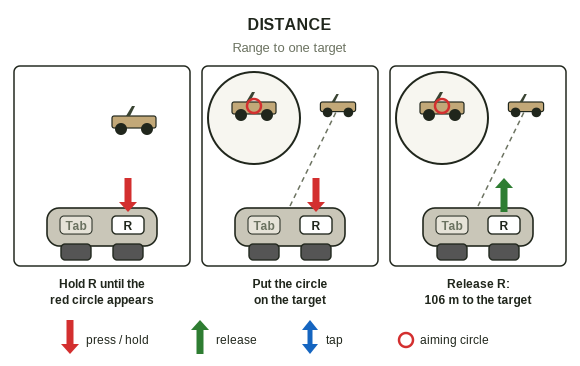
- Press and hold R until the red pointing circle appears. Sight the circle on the object and release the key.
QV/10.02/G1.3GuideAzimuth
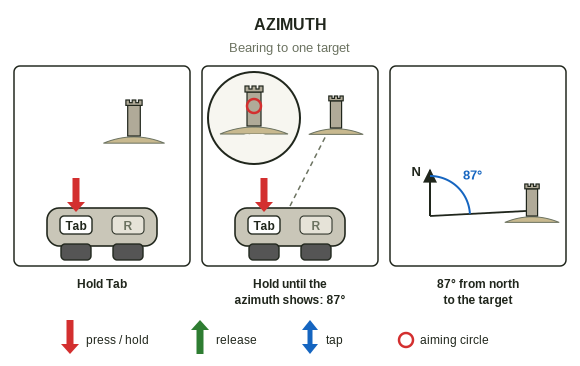
- Press and hold the Tab ↹ until the azimuth is displayed.
QV/10.02/G1.4GuideDistance and Azimuth
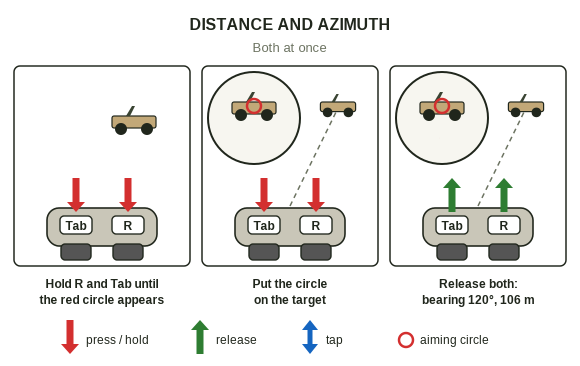
- Press and hold both R and Tab ↹ until the red pointing circle appears.
- Sight the circle on the object and release both keys.
QV/10.02/G1.5GuideHorizontal distance and height difference
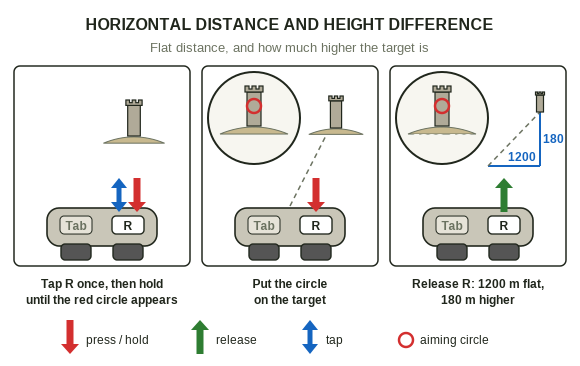
- Tap R once then press and hold it until the red pointing circle appears.
- Sight the circle on the object and release the key.
QV/10.02/G1.6GuideAzimuth and Inclination
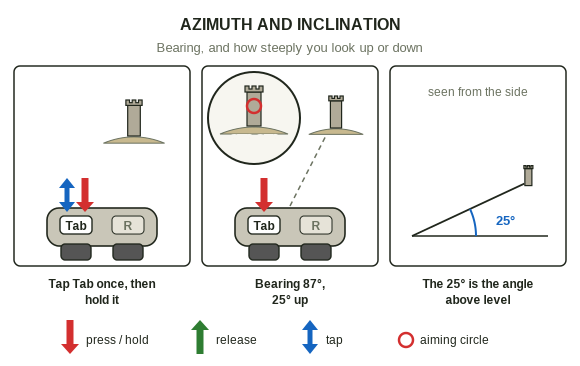
- Tap Tab ↹ once then press and hold it until the azimuth and inclination is displayed.
QV/10.02/G1.7GuideDistance between two points
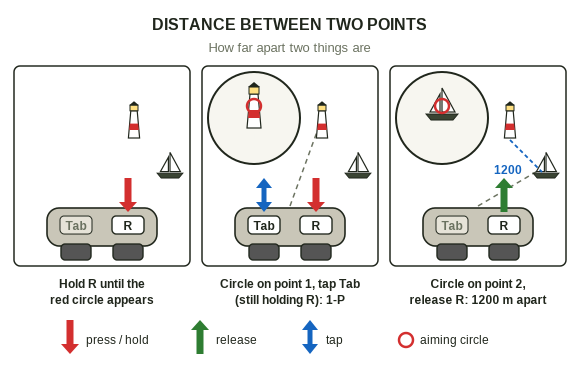
- Press and hold R until the red pointing circle appears.
- Sight the circle on the first object and tap Tab ↹ while further holding R. The first measurement is confirmed (“1-P” = first point).
- Sight the second object and release R.
QV/10.02/G1.8GuideHorizontal and vertical distance between two points
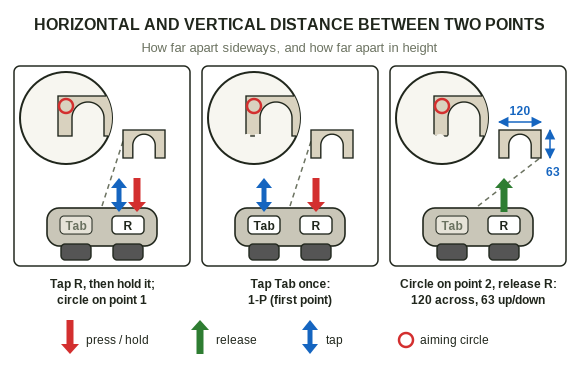
- Tap R once then press and hold it until the red pointing circle appears.
- Sight the circle on the object and tap Tab ↹ once. The first measurement is confirmed (“1-P” = first point).
- Sight the second object and release R.
QV/10.02/G1.9GuideHorizontal distance and azimuth between two points
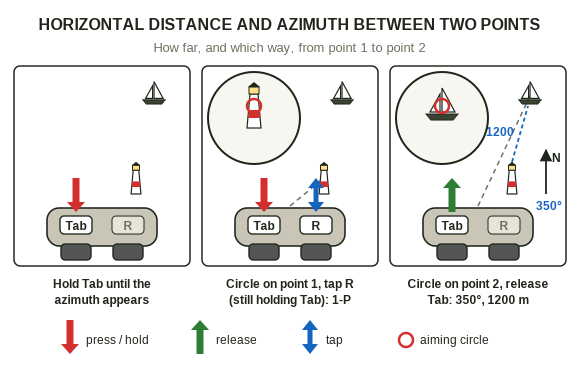
- Press and hold Tab ↹ until the azimuth appears.
- Sight the circle on the first object and tap R while further holding Tab ↹. The first measurement is confirmed (“1-P” = first point).
- Sight the second object and release Tab ↹.
QV/10.02/G1.10GuideFall of shot
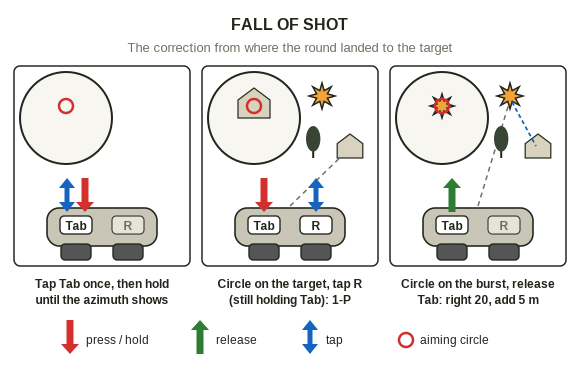
- Tap Tab ↹ once then press and hold it until the azimuth appears.
- Sight the circle on the object and tap R while further holding Tab ↹. The first measurement is confirmed (“1-P” = first point).
- Sight the Fall of shot and release Tab ↹. The left digits display the left (L)/right (r) correction value in meter and the right digits display the longer (A = add)/shorter (d = drop) correction value in meter. If R is tapped the height correction values will be displayed (UP and down).
QV/10.02/G1.11GuideSetting the measurement units (degrees/mils & meters/feet)
- Tap Tab ↹ five times fast. “Unit Set” appears briefly.
- Press R until the desired units are displayed.
- Tap Tab ↹ five times fast to save the selection.